Course description

Need to show people how to do something, again and again? This course shows you, step by step, how to make short training and how-to videos that people can actually follow, using the phone and computer you already have. No video experience is needed.

It's a full course, not a quick tour. There are 10 sections and 50 written lessons. You follow a library assistant through seven months of making "Digital Help" videos for residents and training videos for staff, including the mistakes along the way: a video that was far too long, a recording that nearly showed a member's details, captions that got the words wrong and a video that went out of date overnight. Every section has a worksheet, answers, a cheat sheet and ready-made templates and workbooks.


What you'll learn

  • Planning: one task per video, the right style for the job, learning goals, task steps and a script that sounds like you.
  • Privacy: practice accounts, a tidy screen and a check of every frame before you publish.
  • Recording: screen recordings on a computer, phone or tablet, demos, talking heads, light and clear sound.
  • Editing: a rough cut, pacing for learners, on-screen text, zooms and a simple house style.
  • Sound: voiceovers, cleaning up speech, and music and images within copyright rules.
  • Accessibility: checked captions, transcripts and step guides, contrast and videos for less confident learners.
  • Publishing and results: exporting, titles and chapters, who can see what, a version log, feedback from real learners and what the numbers can and can't tell you.


The final projects

You'll plan and script a short how-to video for your own learners, then record, edit, caption and publish it and try it out with one learner. A project brief, a review workbook and a handover checklist are included.


Who this course is for

  • Trainers, managers and team leaders who explain the same tasks to new starters.
  • Teachers, tutors, library and council staff who help people use websites, apps and equipment.
  • Small business owners, charity staff and volunteers who want clear how-to videos for customers or members.


How the course works

Read each lesson, then do the practical task using the templates in the practice pack. The lessons are tool-neutral, so the steps work with any screen recorder or video editor, including free ones. Where the rules matter, such as data protection, consent, copyright and accessibility, it gives general information, not legal advice, and points you to the Information Commission (still known as the ICO), the Intellectual Property Office and GOV.UK. Go at your own pace and keep lifetime access.

What will I learn?

  • Plan short how-to videos around one task and a clear learning goal
  • Break a task into steps and write a script that sounds like you
  • Record clean, private screen recordings on a computer, phone or tablet
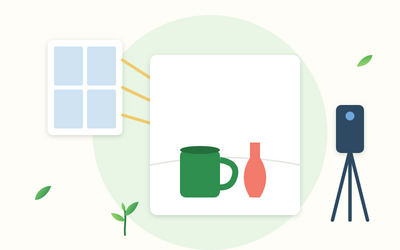
  • Film demos and talking-head videos with good light and clear sound
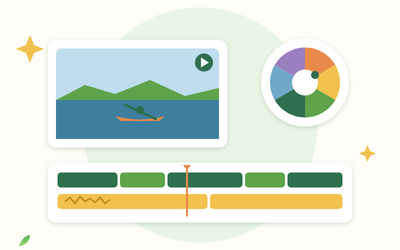
  • Edit at a pace learners can follow, with clear on-screen text
  • Record a voiceover and use music and images within copyright rules
  • Make videos accessible with checked captions, transcripts and good contrast
  • Publish, organise, measure and keep a library of training videos up to date

Requirements

  • No video experience needed
  • A smartphone and any computer, laptop or tablet
  • Any free video editor (the lessons are tool-neutral)
  • Any spreadsheet program for the practice workbooks (optional)

Frequently asked questions

Anyone who has to show other people how to do something: staff trainers, managers training new starters, teachers and tutors, library and council staff, charity volunteers and small business owners.

None in particular. The lessons are tool-neutral: they tell you what to look for in any screen recorder or video editor, so the skills work on whatever computer, phone or editor you have, including free ones.

No. A smartphone, a computer and a simple phone stand are enough. The course explains when a clip-on microphone is worth adding.

Video Editing for Beginners covers editing in general. This course is about teaching with video: planning one task per video, scripting, screen recordings, pacing for learners, captions, privacy and keeping a library of how-to videos up to date.

Yes. Every section has a worksheet, answers, a cheat sheet and tools, including a video plan on a page, a script template, a privacy check, a consent form for people on camera, a caption checklist, a version log and a video log workbook.

No. Every lesson is written out step by step, and every section has practice files to download. There are no quizzes, tests or deadlines, so you can learn at your own pace.

You get lifetime access, with no expiry date. Come back to any lesson whenever you need a refresher.

Yes. You can ask for a refund within 14 days of buying if you've completed less than 30% of the course. Email support@rootlet.co.uk.
How to Make Training Videos: Screen Recordings, Demos and Video Guides

£29.99

Lectures

60

Quizzes

10

Skill level

Beginner

Expiry period

Lifetime

Certificate

Yes

✓ 14-day money-back guarantee if you have completed less than 30% of the course. Refund policy

✓ Secure card payment by Stripe

✓ Questions before you buy? support@rootlet.co.uk

Sold by Rootlet Academy Ltd, a UK company (no. 17529179).

Share this course

Related courses

Learn something new every week

One short, practical tip each Thursday, plus news when new courses open. Free, and you can unsubscribe in one click.

We'll never share your email. See our privacy policy.