Course description
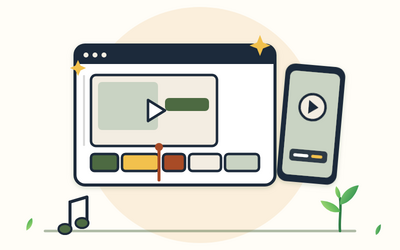
You already use Canva for posts, posters or slides. This course takes you into movement: short videos, reels, animated slides, talking presentations, GIFs and explainers, all made in the Canva you already know. You'll learn the video editor and timeline, scene timing that gives people time to read, animation used with restraint, your own clips, sound and voiceover, accurate captions, and downloads at the right settings.
It's a full, hands-on course, not a quick tour. There are 10 sections and 50 written lessons, each with a worked example, questions people often ask and a short task to do in your own Canva account. You follow Destiny, a hand bookbinder in Carlisle, from an eight-second teaser to a 60-second explainer, a product reel timed to music, an animated deck for a talk and a recorded presentation, including the mistakes she made and how she put them right. Every section has a practice pack with a worksheet, key points and the files the lessons use: mock-up editor maps, storyboards, timing tables, shot lists, a music bed and short practice clips made for the course, caption files with deliberate mistakes to find, checklists, planners and project plans.
It also covers the parts that matter when you publish for a business, charity or club: music licences in plain terms, copyright, permission from people on camera, advert labels, AI labelling and accessible captions and contrast, as general information rather than legal advice. Canva changes often, so the course describes what each tool does rather than exact buttons, and shows you how to keep up.
What you'll learn
- Getting started with Canva video: what Canva can do with video and motion, the free and paid plans in outline, the video editor and timeline, planning before you open Canva, and your first short video.
- Scenes, pages and timing: one idea per scene, setting scene lengths so people can read them, timing elements inside a scene, going from storyboard and script to scenes, and reusing scenes.
- Animation and transitions with restraint: page and element animations, choosing a small motion style, transitions between scenes, movement that guides the eye, and motion that stays comfortable to watch.
- Clips, footage and recording yourself: adding and trimming clips, framing them in a scene, Canva's built-in recorder, and filming short clips on a phone that edit well.
- Music, sound and timing to music: audio tracks and volumes, the music licence question in plain terms, timing scenes to the beat, recording a voiceover, and balancing voice, music and effects.
- Captions and accessibility: why captions matter, making and checking captions in Canva, caption style people can read, .srt caption files for platforms, and an accessibility checklist.
- Presentations that move: when slides should move, builds that reveal one point at a time, presenter view and backups, recorded talking presentations, and turning a deck into a video.
- Brand, resizing and formats: brand consistency in motion, Brand Kits and templates, resizing one video for 9:16, 1:1, 4:5 and 16:9, safe zones and platform crops, and using AI tools carefully.
- Exporting and sharing: download settings and the checks that follow, GIFs and short loops, sharing links or files, a full check before you publish, and a repeatable weekly workflow.
- Worked projects and your final project: a 60-second explainer, a product reel cut to music and an animated deck with a talking presentation, start to finish, then your own final project with a brief, a planner and model answers.
Who it's for
Anyone who already uses Canva and wants to move into video and animation: small business owners, charity staff and volunteers, club secretaries, teachers, trainers and presenters. You don't need any video editing experience. The course is about making videos and moving slides, not growing an audience, hashtags or analytics, and the phone appears only as a camera. It gives general information, not legal advice. Rootlet isn't connected to Canva, TikTok, Instagram or YouTube. The people and businesses in the course are fictional.